To edit a Canva beach birthday invitation, open the template link from your PDF, sign in to a free Canva account, and click each text box to change the name, age and party details. Then download it as PDF Print for paper invites, or as a PNG or JPG to text to guests. You don't need a paid plan or any design experience.
You've bought an editable beach birthday invitation, or you're about to, and you want to know what you're getting into. Good news: if you can edit a text message, you can edit a Canva template. Here's the whole process from download to "sent."
What you'll need
- A free Canva account. Sign up at canva.com with an email or Google account. Canva Pro isn't required.
- A phone, tablet or computer. Canva works in a web browser and in the free Canva app. A computer is easiest for fine-tuning, but a phone works.
- Your party details. Her name, age, date, start and end time, address and RSVP contact. Write them down first so you're not hunting for them mid-edit.
Step 1: Open your template link
After you buy a Canva template on Etsy, you download a PDF from your Etsy purchases. Inside is a link to the template. Click it and Canva asks you to use the template, which creates your own copy in your Canva account. You can't break the original, so edit freely.
Step 2: Change the text
Click any text box to select it, then click again to type. Work from top to bottom:
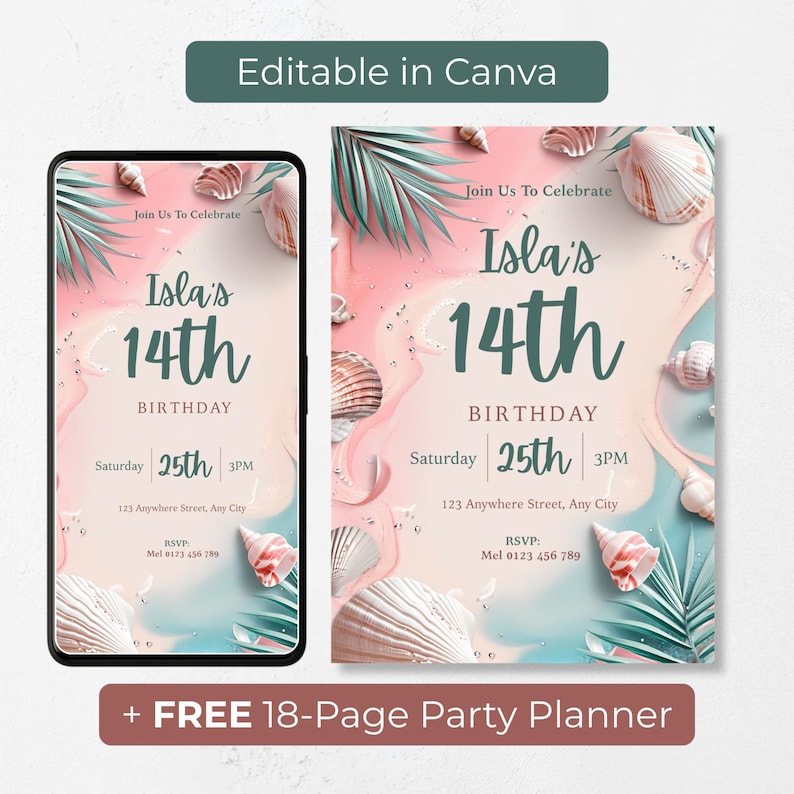
- The headline ("Join Us To Celebrate" or your own line)
- Her name
- The age, for example "14th" becomes "13th" or "Sweet 16"
- The day, date and time
- The address
- The RSVP name and number
Tip: if a line gets too long and wraps awkwardly, shrink the font size slightly or shorten the wording. "Main St Beach, Tower 6" fits better than the full street address.
Step 3: Adjust fonts and colors (optional)
Select a text box and use the toolbar at the top to change the font, size or color. Keep it to two or three colors that already appear in the design so it stays cohesive. On a pastel beach invite, a deep teal and a dusty rose usually look best.
The background artwork (the watercolor, shells and palm fronds) is usually a fixed image, so plan to change the text rather than the scene.
Step 4: Proofread on a big screen
Zoom in and check every number: the date, the time and the phone number. Read it aloud. It's also worth sending a screenshot to someone else before you print 20 copies.
Step 5: Download the right file
Click Share, then Download, and choose:
- PDF Print for printing at home or at a print shop. This keeps it crisp at 300 DPI.
- PNG or JPG for texting or posting online.
Step 6: Print or send
To print: use 5x7 cardstock if your printer handles it, or upload the PDF to a local print shop or photo center. When printing at home, choose "actual size" rather than "fit to page."
To text: use a mobile-sized version (1080x1920) so it fills the phone screen without awkward cropping, then drop it into the group chat, a text thread or Instagram stories.
A template that makes these steps easy
If you're still choosing a design, look for one that includes both a print size and a mobile size, lists exactly what's editable, and comes with clear instructions. Our Editable Beach Birthday Invitation for teen girls ticks all three. You get a 5x7 Canva template and a 1080x1920 mobile version, a PDF with your template link and step-by-step instructions, and editable text, fonts and text colors, all in Canva Free.
It also includes a free 18-page printable party planner and free access to the PartyHub party planner web app, with no account or login needed, so the rest of the party is just as organized. And if you'd rather not edit at all, there's an optional "We Edit For You" add-on.
The bottom line
Editing a Canva invitation takes six simple steps: open the link, change the text, tweak the style if you like, proofread, download the right file type, then print or send. You don't need a paid account or design skills, just your party details and a few quiet minutes.
Frequently Asked Questions
Do I need Canva Pro to edit the beach birthday invitation?
No. The template works with a free Canva account on a phone, tablet or computer.
What file should I download to print the invitation?
Download it as PDF Print. The template is print-ready at 300 DPI when saved that way. Use PNG or JPG for sending digitally.
Can I edit the invitation on my phone?
Yes. Canva works in a mobile browser and in the free Canva app, so you can edit and download the invitation from your phone.
What parts of the invitation can I change?
You can edit all the text, fonts and text colors. The watercolor background with the seashells and palm fronds can't be edited.